
Currently, AnyRail does not include object libraries or user object libraries for rolling stock such as locomotives, passenger cars, or freight wagons. However, you may still want to check track spacing and determine how many freight wagons you can realistically fit on each siding.
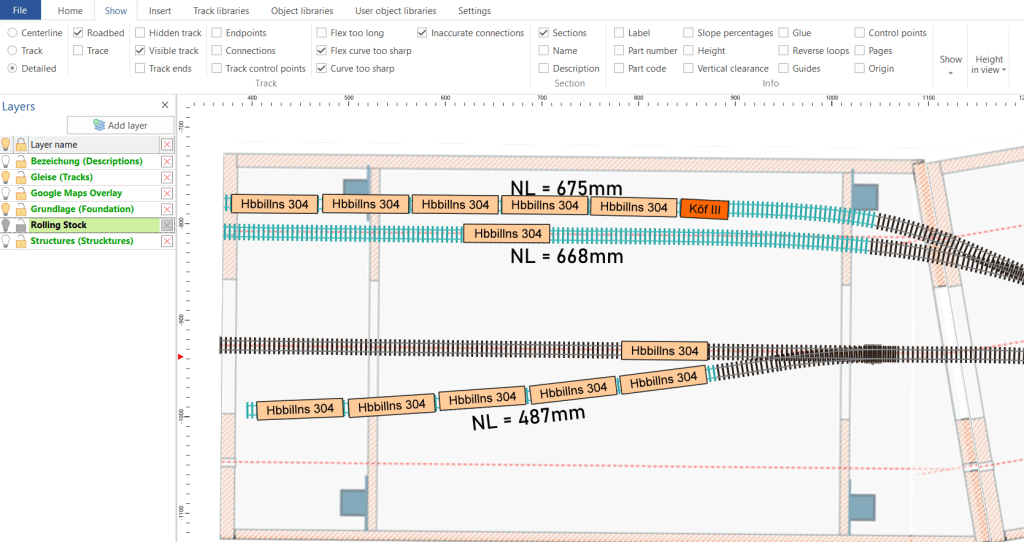
By using the existing features in AnyRail, you can create your own “rolling stock” objects and add them to your track plan for positioning and spacing checks.
First, choose the longest wagon and locomotive you plan to use on your layout. Measure the body length—both with and without buffers—as well as the body width. In my case, I used a Köf III shunting locomotive (49 mm length over buffers) and an Hbbillins side-wall wagon (89 mm body length, 97 mm length over buffers) in N scale. In Germany, rolling stock width in N scale is typically around 18–19 mm.
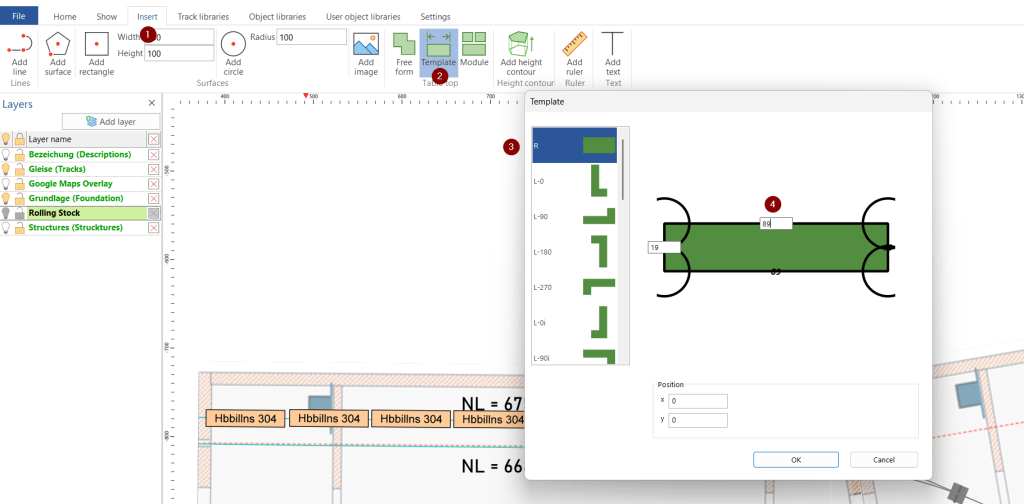
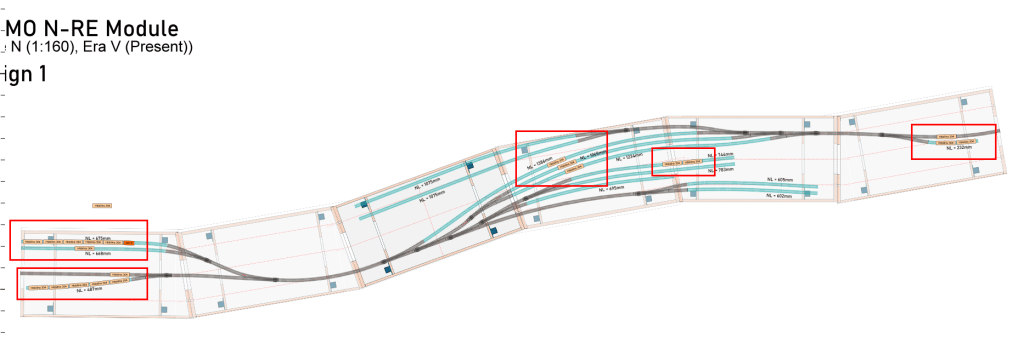
Second, using the Template feature, I created a rectangle with a body length of 89 mm and a body width of 19 mm. I then selected a color and changed the template type to Surface.
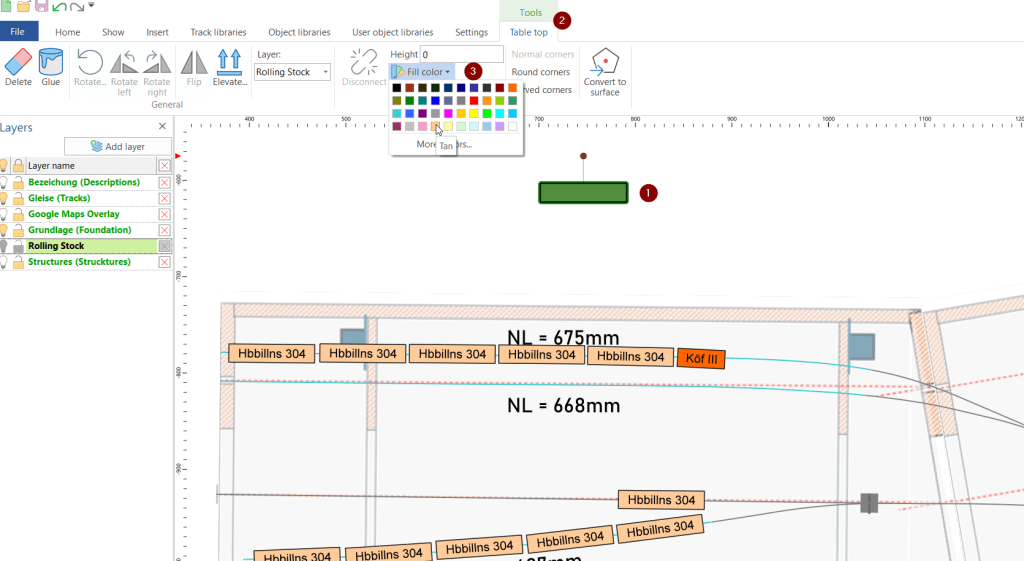
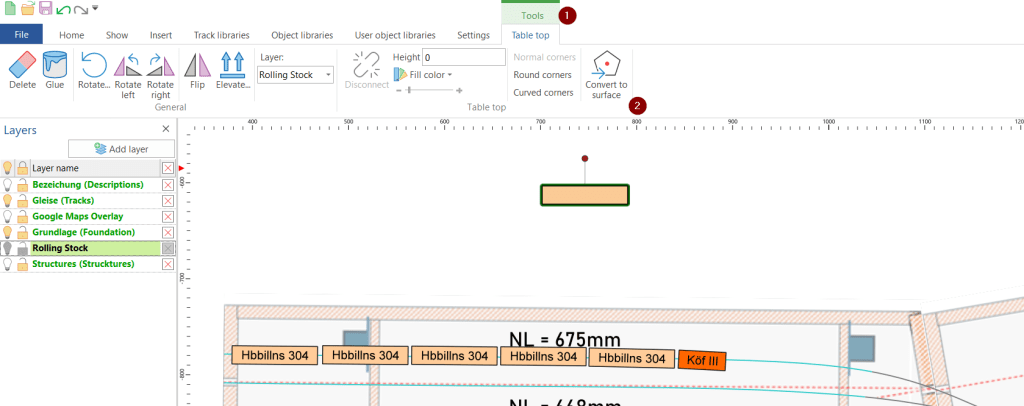
Next, I added the text “Hbbillins 304”, centered it within the box, and grouped the text and the box together.
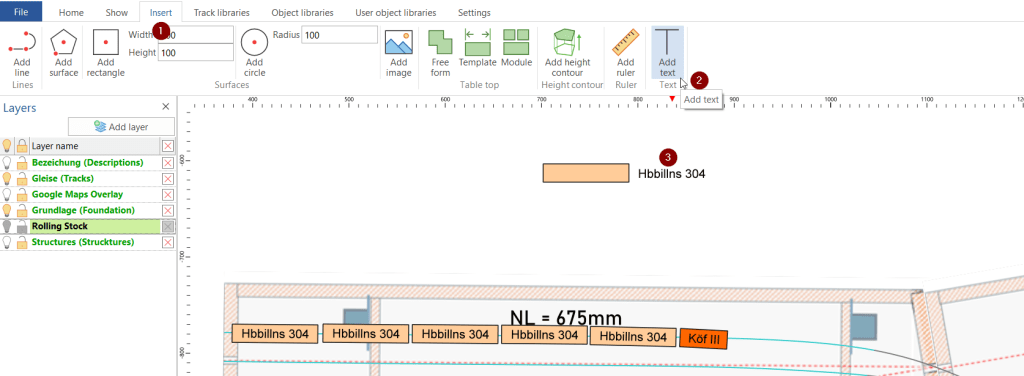
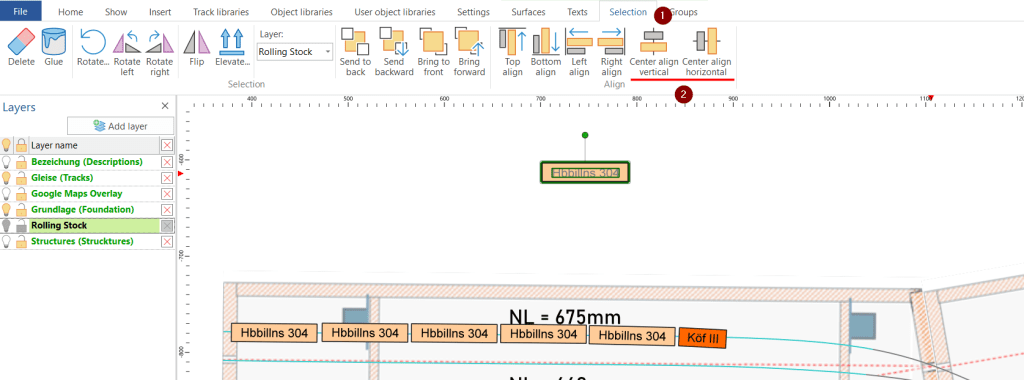
With Show → Centerline enabled, I positioned the boxes along the curvature of the track centerline. This requires some careful adjustment. You can then switch to Show → Detailed to see how the wagons and locomotive look on the actual track plan.
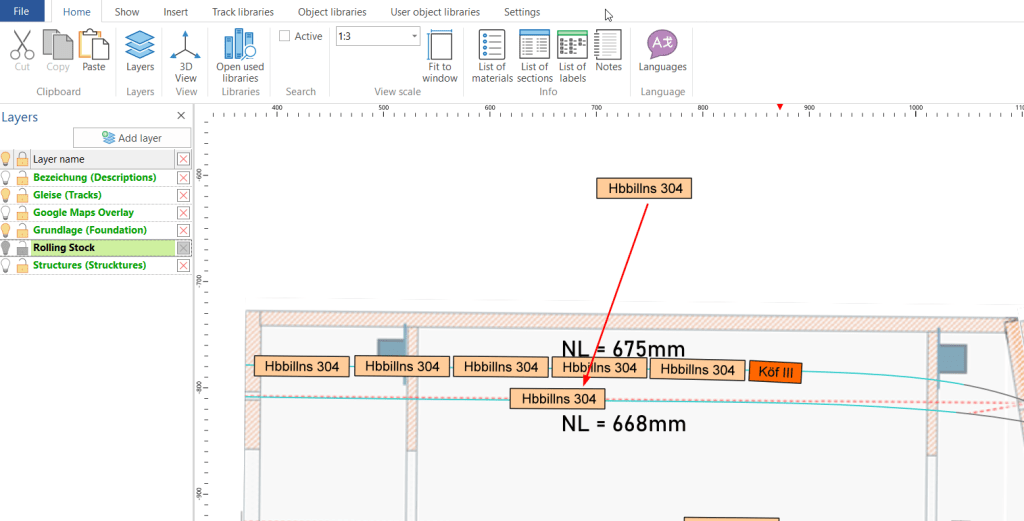
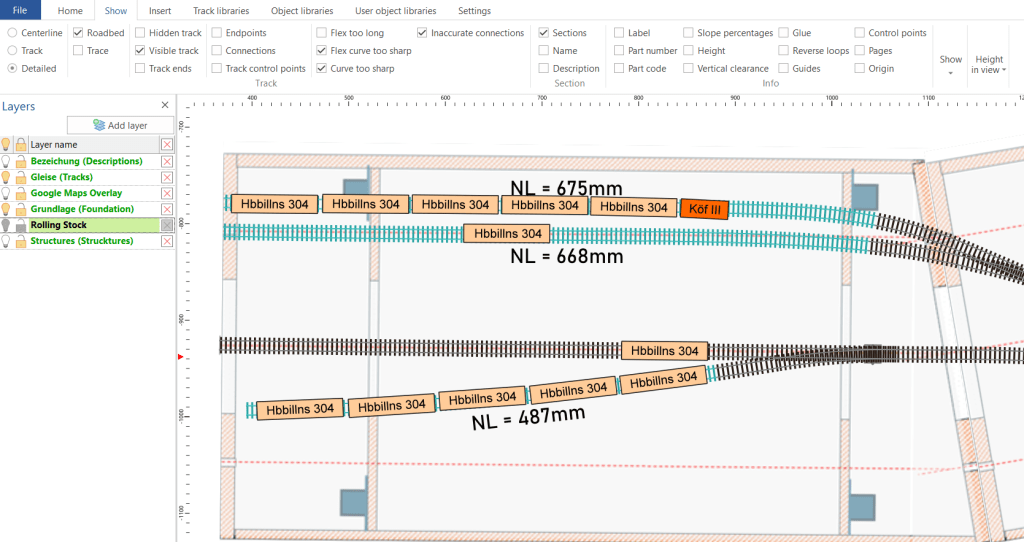
I am quite happy with the result, as it gives me a good sense of how many wagons I can fit on a siding and where the track limits are, ensuring that adjacent wagons do not collide with—or rub against—each other.
 germaN:160 by traiNmaster