

Update 21.12. and 29.12.: I have updated this post with more information about the AnyRail features and changed the title from MS Office-like to PowerPoint-like.
It was a coincidence that I discovered the AnyRail track planner software. I had previously used the licensed version of SCARM (Simple Computer Aided Railway Modeller) for track planning. SCARM is a well-established layout planning program with a solid model train simulator and a 3D viewer. Some features take practice to master—just like any new software or hobby. I decided to give AnyRail a try to see how it compares and what, if anything, it does better.

MS-PowerPoint-like Menus
Many of us are familiar with the MS Office suite of applications. If you use MS PowerPoint, you will notice some similarities. AnyRail’s menus are arranged in an MS PowerPoint–style layout, making it easy to find what you need since the tools are grouped logically.






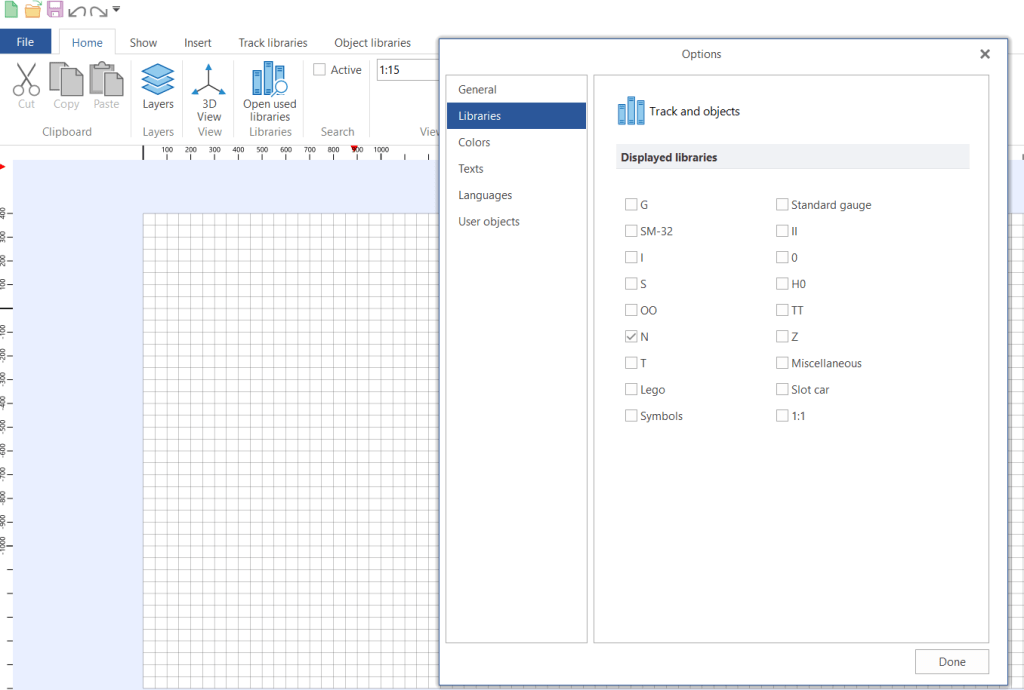
Under theOptions menu in File, you can pre-define several settings such as user interface options, displayed libraries (useful if you want to work with more than one scale), color schemes for tracks and grids, and language settings.


What I Like About AnyRail (Updated)
Importing Background Images
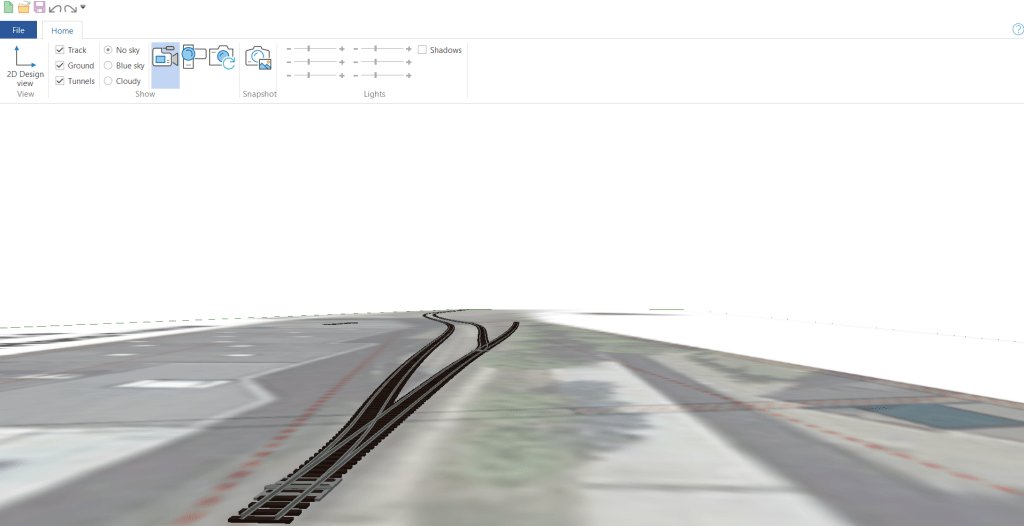
I was able to import images, such as my FREMO segments that I had previously superimposed with the actual track plan of the location from Google Maps, and use them as a baseline for track planning in AnyRail. I scaled the AnyRail workspace to 1:5, which matches the scale of the image. For the track components, I used the Peco Streamline Code 55 N-scale library.

I have three segments (Segments 4 to 6) with a clear view of where the joints and connections between modules are located. This allowed me to position the turnouts—especially the frogs and switches—so they avoid the joints. Using the 3D view, I can rotate the track plan to see it from different perspectives. Since the imported image is a flat file, it does not appear in 3D, as expected.

Ease of Manipulating Flex Tracks
Compared to SCARM, I found the flex tracks easier to manipulate. You can curve a flex track at different points, and if you define minimum parameters such as track radius, the software will prompt you when the curvature falls below the limit. Cutting and joining flex tracks is also straightforward.
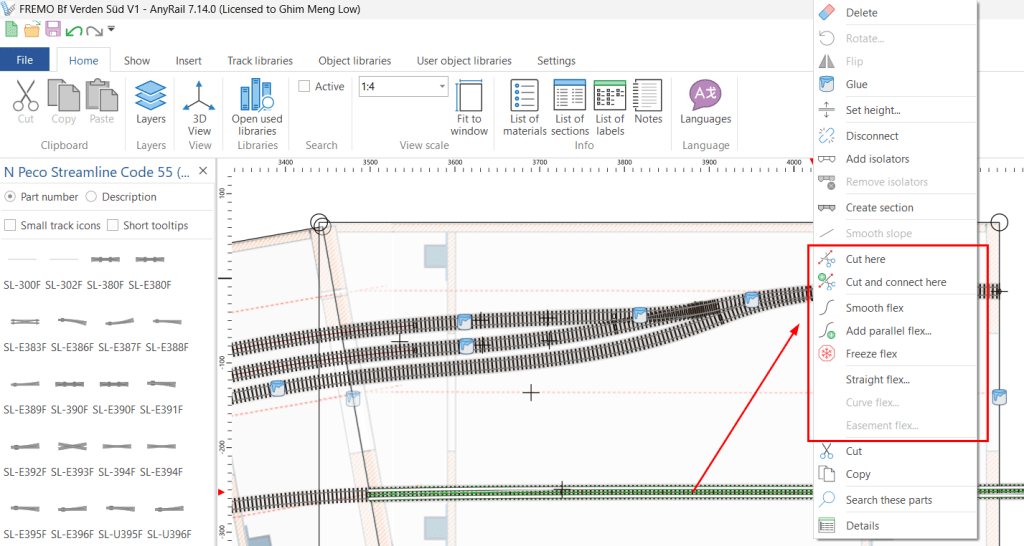
As I am using Peco N Streamline Code 55 tracks and turnouts, which do not include sectional tracks, I prefer using flex track. Flex track allows me to join more than one section together, bend it, and cut it to the exact length I need. In AnyRail, you can open a context menu by right-clicking on the track. From there, you can cut or cut and correct a flex track, create a parallel flex track, or smooth the track. I found this to be one of the best features in AnyRail.
Gluing Down Your Objects or Modules
Have you ever encountered a situation where, while working on your track plan, the tracks or baseboard accidentally move and throw the entire configuration out of place? With AnyRail’s Glue feature, you can “nail down” objects—such as tracks, turnouts, and structures—that you no longer want to move. When an object is glued, a “Glue Bucket” icon appears. You can unglue and reglue items at any time while continuing to work on new elements.
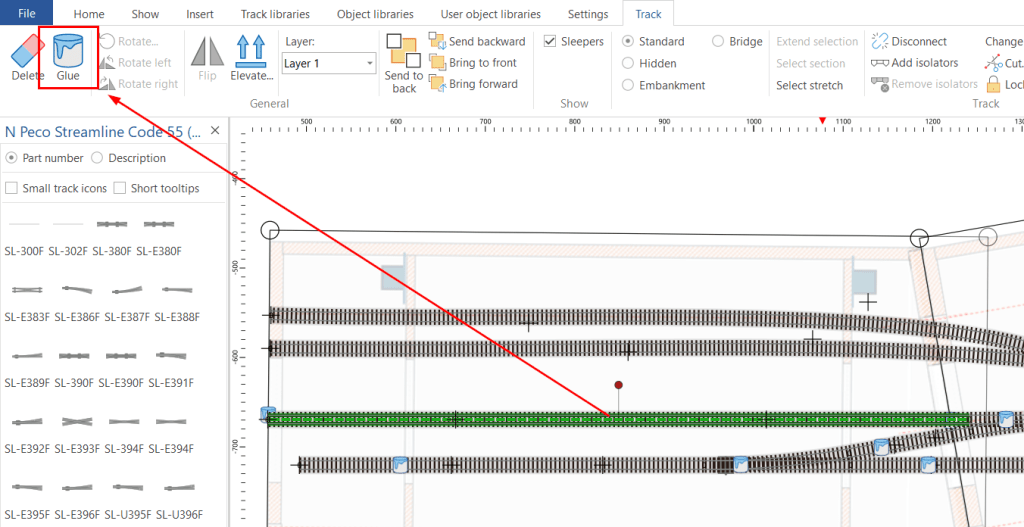
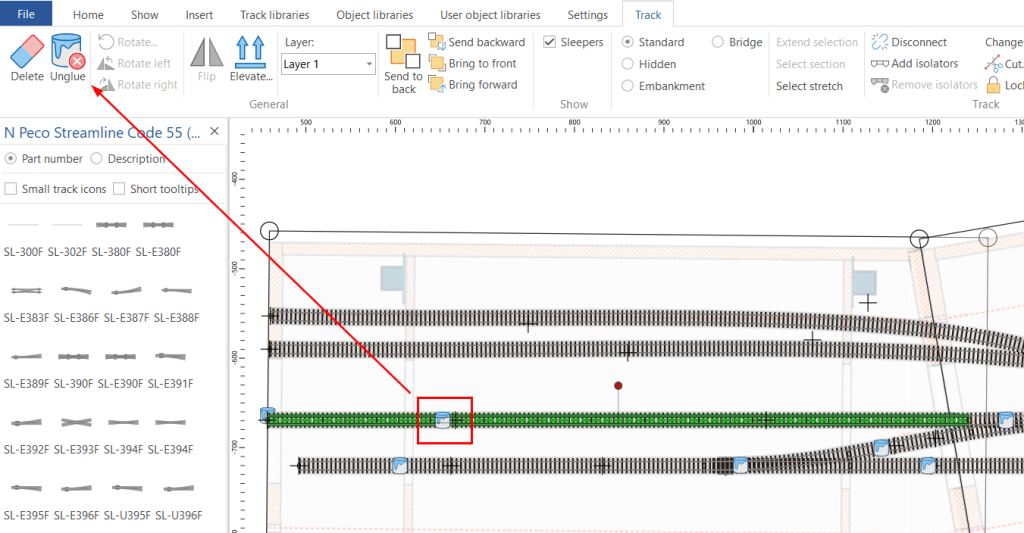
The same approach can also be applied to modules.

Planning Error Alerts
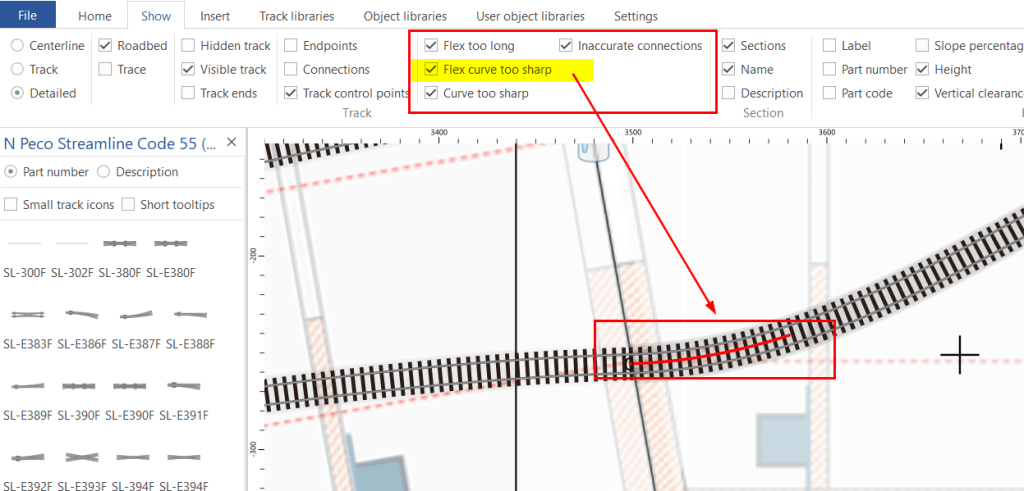
AnyRail will prompt you about errors when flexing a track (provided these checks are enabled and a minimum radius is specified under Settings). If a flex track curve is too sharp, a red line appears at the problem area. You can then adjust the track until the warning line disappears.
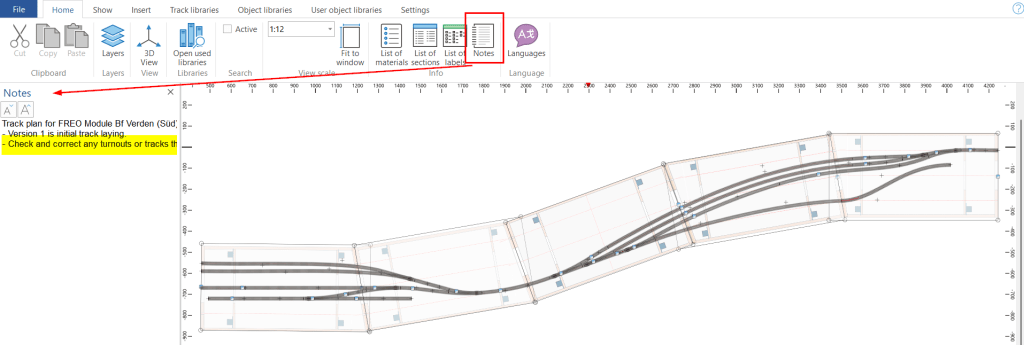
Appending Notes
I found this feature very useful. I do wish, however, that the text view could be wrapped (text wrap just like in MS Excel) so I wouldn’t need to scroll horizontally to read it.
There are many more AnyRail features that I could write about, and this short review does not fully do justice to its capabilities. I will cover them as I share more about my FREMO module planning.
Changing Font Type, Size, Color and Text Orientation
Just like in MS PowerPoint, you can change the font type, size, color, and even the text orientation. This is a useful feature in AnyRail if you want to emphasize different descriptions. At the moment, however, you cannot underline or italicize the text.

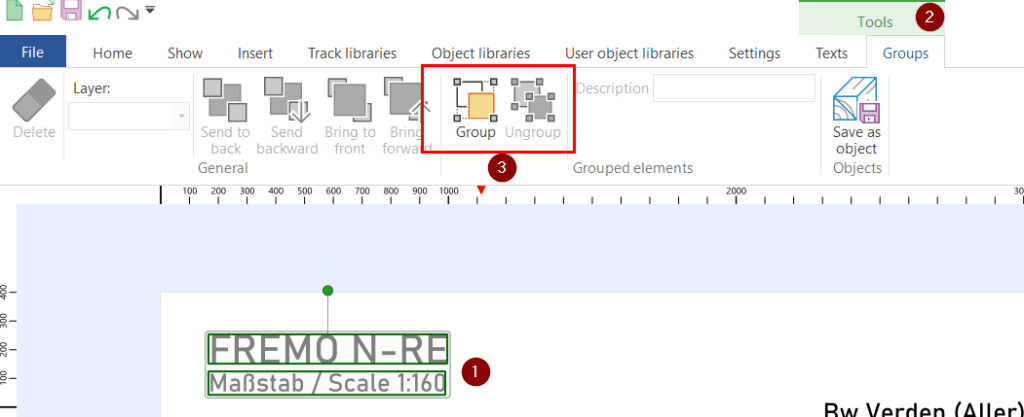
Grouping Objects
You can group two or more objects together, allowing you to handle them as a single object instead of multiple ones. Grouped objects can be ungrouped at any time.
Aligning Objects
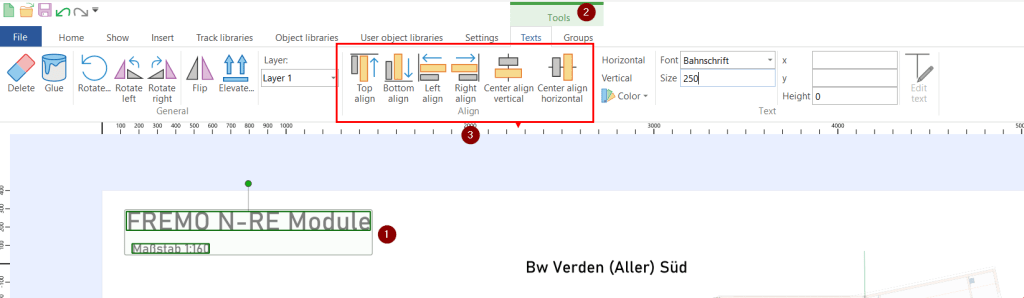
If you have two or more text boxes or objects that you want to align, you can use alignment features similar to those found in PowerPoint.
What SCARM Does Better
SCARM has a Model Train Simulation extension that allows you to run trains on your track plan and see how it would look once the actual layout is built.

Cost Consideration
You can download a free trial version, which is limited to 50 track sections. A one-time licensed version costs €55.00 (at the time of this post) and includes free updates.
Conclusion
I like the clean, professional look of the AnyRail track planning software and the features I mentioned above. It is one of the better track planning programs I have tried, especially when working with flex track.
What do you like about AnyRail software?
 germaN:160 by traiNmaster